Pipeline stages
Last updated: October 17, 2026
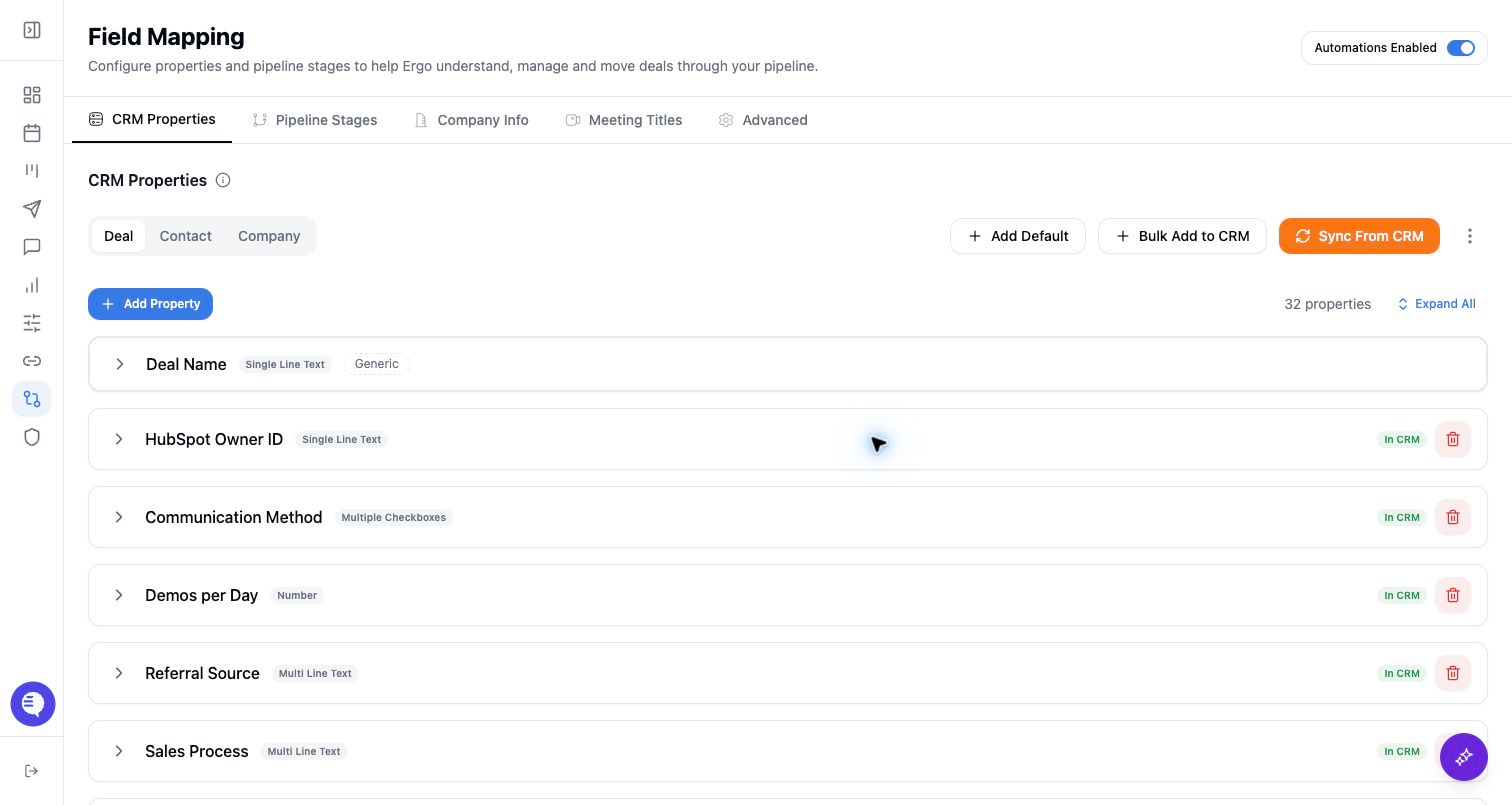
Use this page when an admin or RevOps owner is preparing deal stages for Ergo. Pipeline stages give Ergo the CRM-native stage IDs, names, descriptions, and allowed movement paths it needs for deal context, CRM updates, reporting, and agent guidance.
Who can use this
- Admins and RevOps owners who manage CRM pipeline configuration.
- Operators helping with rollout, as long as a CRM owner approves the selected pipelines and stages.
Before you start
- Connect the workspace CRM.
- Confirm which pipelines Ergo should use. If your CRM has multiple sales motions, do not assume every pipeline belongs in the initial rollout.
- Make sure each selected stage has a stable CRM internal ID, name, and meaning.
- Finish CRM property setup first when stage movement depends on mapped CRM fields or permissions.
Steps
- Open Field Mapping and go to the pipeline or stages area.
- Fetch the available CRM pipelines and stages.
- Select the pipelines and stages Ergo should use.
- Sync the selected stages into Ergo. When available, use AI-generated descriptions as a draft, then review them.
- Confirm each stage has the right description and exit points. Exit points define which stages can be reached directly from the current stage.
- Add default stages only when you intentionally want Ergo-managed stages for a pipeline that is not fully represented yet.
- Test a narrow CRM update or deal workflow before enabling broad stage automation.
What to expect
- Ergo syncs selected stages from supported connected CRMs and stores the pipeline name, pipeline ID, stage name, internal ID, order, description, and exit points.
- Stage descriptions are guidance for AI and workflows. Auto-generated descriptions can help, but they should be reviewed by someone who knows the sales process.
- CRM-side changes can create drift. If a stage or pipeline is renamed, deleted, reordered, or changed in the CRM, review Field Mapping before trusting stage-based automation.
- If no CRM is connected or the connected CRM user cannot read stage metadata, stage sync will fail until the integration or permissions are fixed.
Common issues
- A CRM pipeline was changed after onboarding and Ergo still has the previous stage list.
- A deal is created or updated without the expected stage because the required entry stage was not configured.
- A stage exists in the CRM but was not selected during sync.
- Stage names look right but internal IDs do not match the CRM stage IDs.
- Exit points are too broad, too narrow, or stale after a pipeline change.