Ergo Desktop Notetaker
Last updated: October 17, 2026
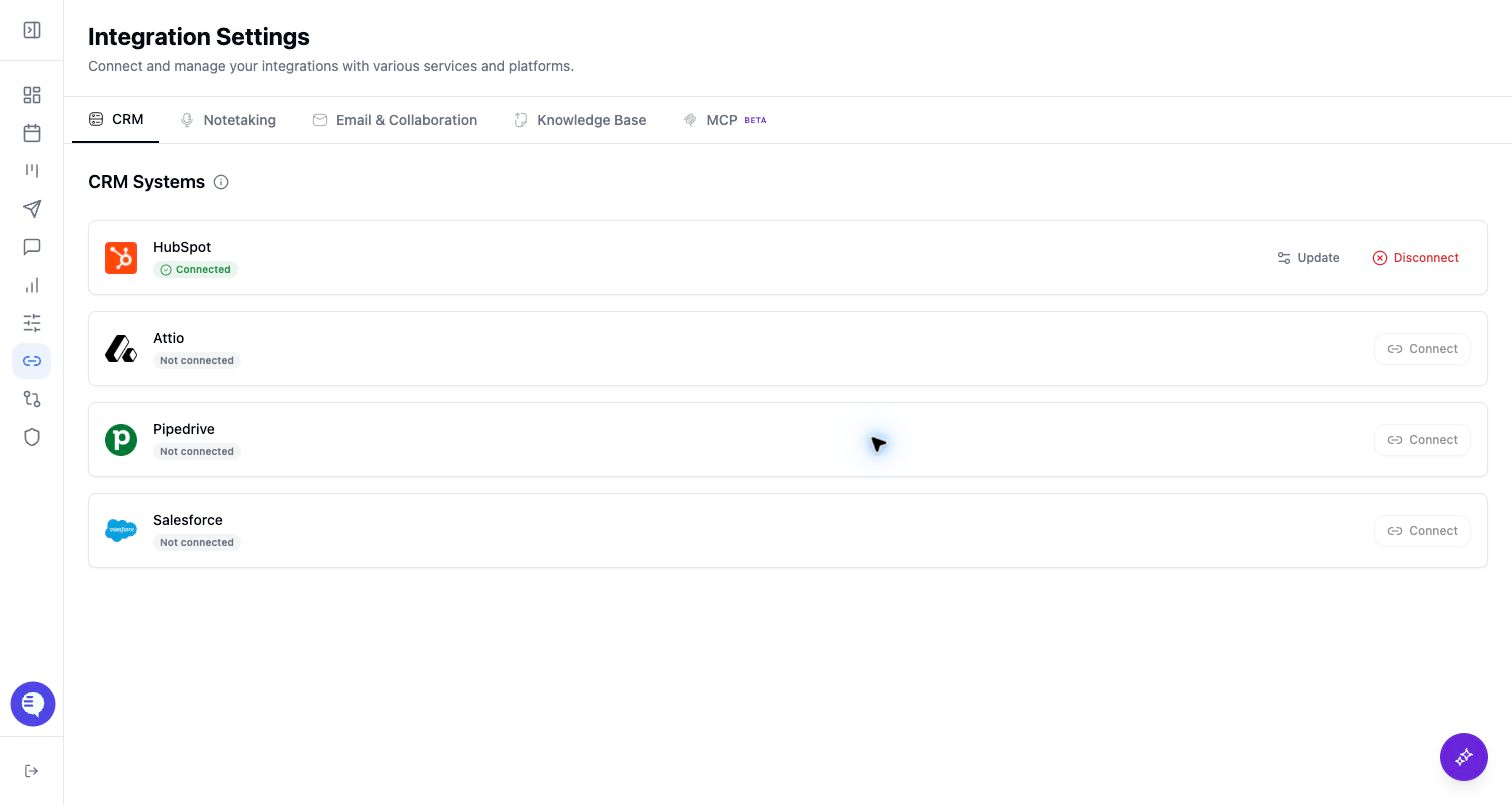
Use this page to enable Ergo Desktop Notetaker when your team wants local desktop recording instead of a bot joining the call.
Who can use this
- Users recording meetings with Ergo Desktop.
- Admins and operators deciding whether desktop or cloud notetaking should be primary.
Before you start
- Install and sign in to Ergo Desktop.
- Grant the required macOS permissions.
- Review whether cloud bot recordings, third-party notetakers, or desktop recordings may overlap.
Steps
- Open Integrations and select Ergo Desktop Notetaker.
- Connect the desktop notetaker.
- In Ergo Desktop, verify sign-in, permissions, and recording readiness.
- Run a short test recording and confirm it uploads to Ergo.
What to expect
- Desktop recording is local audio capture and does not add a bot participant to the call.
- A no-bot recording path does not remove your team's responsibility to follow recording consent and disclosure rules.
- The desktop and cloud notetakers can coexist, but duplicate-source handling depends on the meeting and runtime detection.
- Desktop capture still depends on permissions, app state, audio capture, upload, and backend processing.
Common issues
- macOS permissions were granted but the app was not restarted.
- The desktop app is signed in as a different user than the dashboard.
- A cloud bot also recorded the same meeting, requiring dedupe review.