Add the bot to a live or ad hoc meeting
Last updated: October 17, 2026
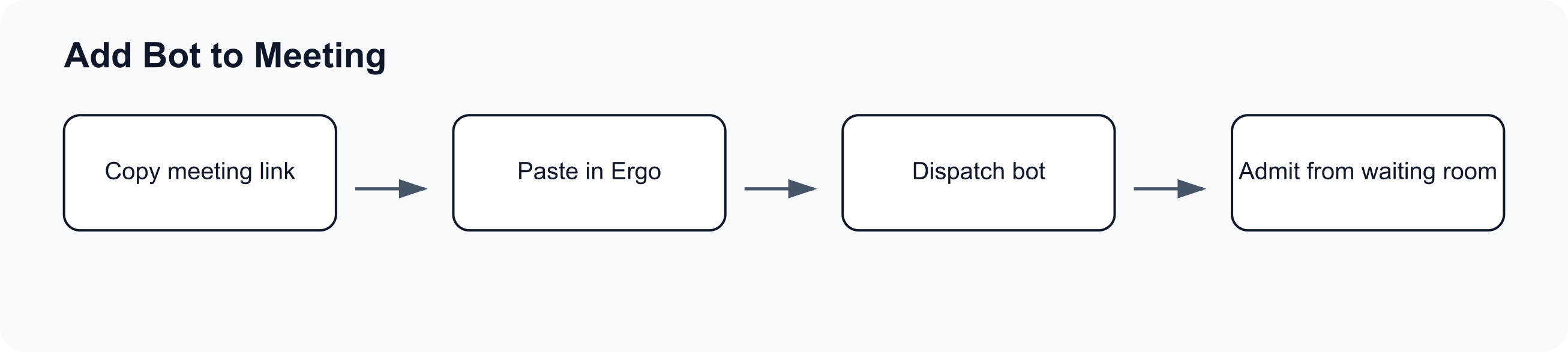
Use Add Bot to Meeting when the meeting is live, last-minute, or missing from the upcoming calendar list.
Before you start
Copy the full Zoom, Google Meet, or Microsoft Teams meeting URL.
Confirm the host will admit the bot if the meeting has a waiting room.
Use this flow for the Ergo bot. Desktop recording is a separate capture mode.
Add the bot
Open the dashboard or Meetings.
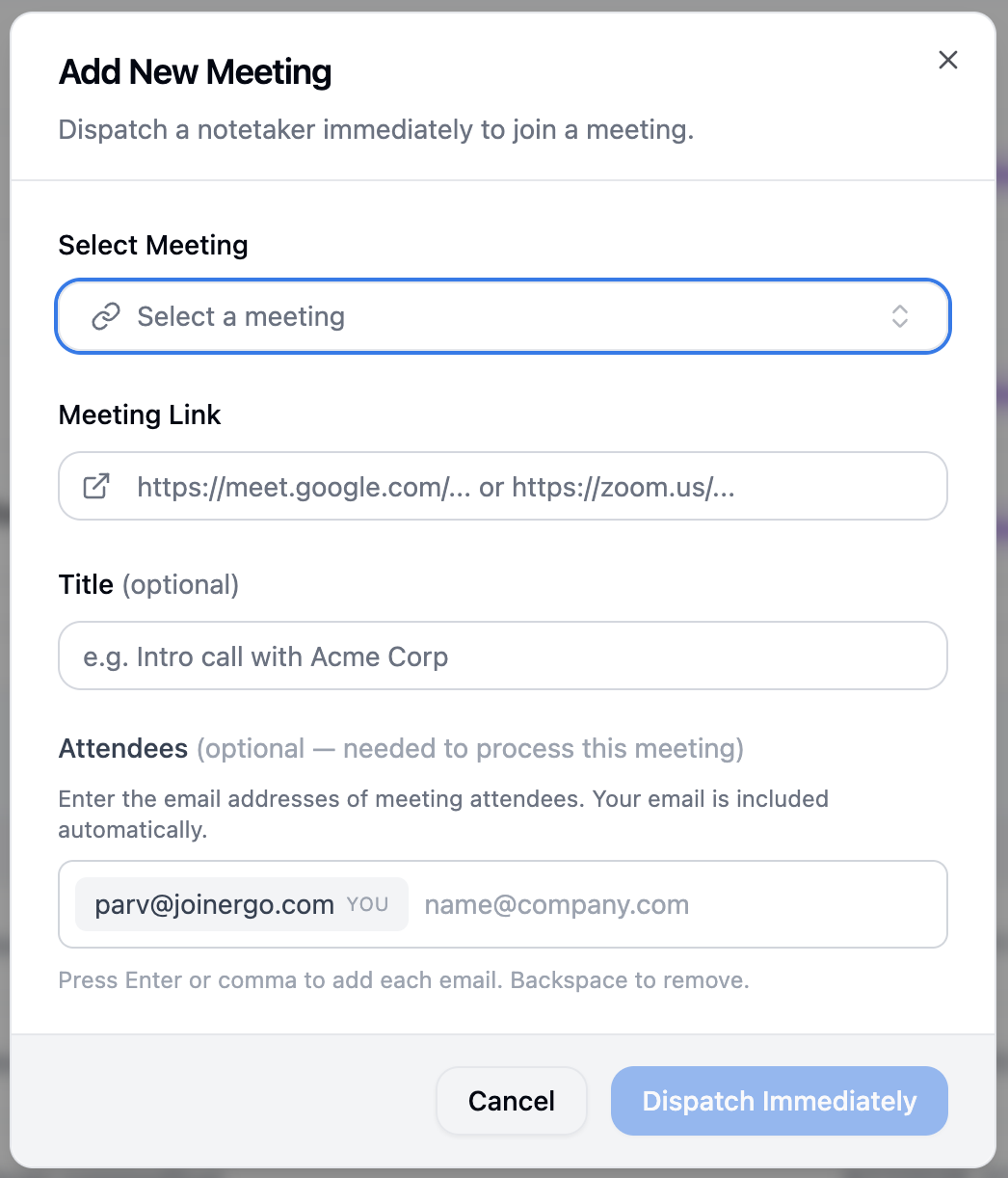
Click Add Bot to Meeting.
Paste the meeting URL or select an available calendar event.
Add an optional title and add the emails of the attendees if you'd like Ergo to process an automation.
Submit the request and watch the meeting card for joining or waiting-room status.
What to expect
Manually added meetings may be stored as unscheduled or ad hoc capture if they were not matched to a calendar event and if no attendees were listed.
If the meeting is matched to a calendar event, Ergo can use that event context for title, attendees, and follow-up workflows.
Invalid or unsupported links can fail before the bot joins.
After the meeting
Check the meeting record for recording, transcript, and generated outputs.
If downstream automations did not run automatically for an ad hoc meeting, use Push notes or meetings to automations where available.