Schedule or cancel the notetaker
Last updated: October 17, 2026
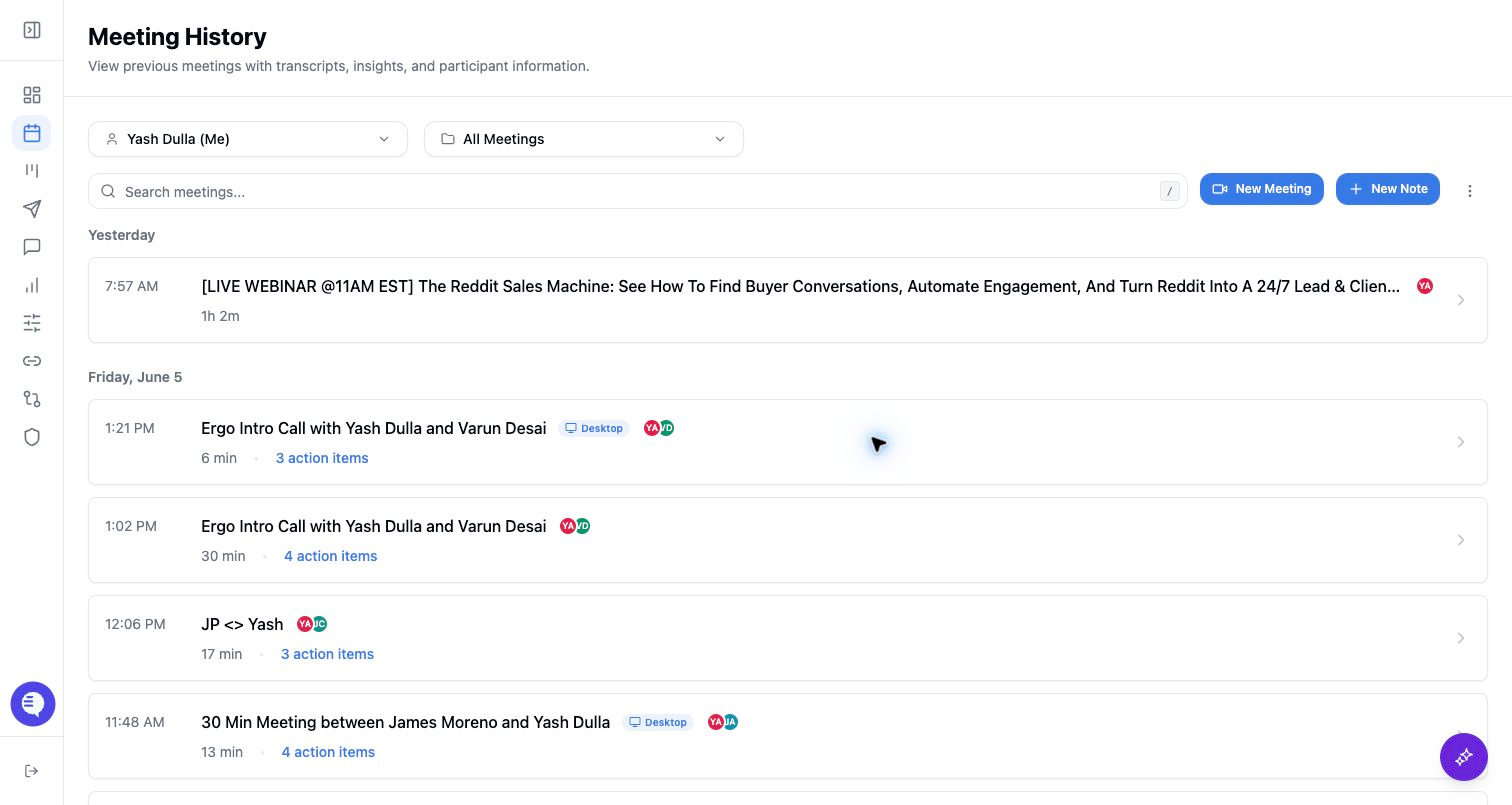
Use the notetaker toggle when a calendar event should or should not be captured by the Ergo bot.
Before you start
- Connect the calendar account that owns the event.
- Confirm the event has a supported meeting URL.
- Decide whether you are changing only one event or future events in a recurring series.
Schedule the notetaker
- Open the upcoming meeting card.
- Turn the notetaker toggle on.
- For recurring meetings, choose whether the change applies to this event or the future series when Ergo asks.
- Reopen the card or refresh the list if you need to confirm the scheduled state.
- If the bot does not join after you turn the toggle on, use Add the bot to a live or ad hoc meeting as the manual fallback.
Cancel the notetaker
- Turn the notetaker toggle off before the meeting starts.
- If the bot is already joining, waiting, or in the call, use the remove action shown on the meeting card.
- For recurring meetings, choose the right recurring option so future events are not accidentally left scheduled.
What to expect
- Calendar visibility and notetaker scheduling are separate. Removing the notetaker does not delete the calendar event.
- Canceling can leave a user-unscheduled marker so Ergo does not reschedule the same event during later calendar sync.
- If the bot is already joining, waiting, or in the meeting, the Ergo dashboard remove action is the safest path, especially when you are not the meeting host.