Slack
Last updated: October 17, 2026
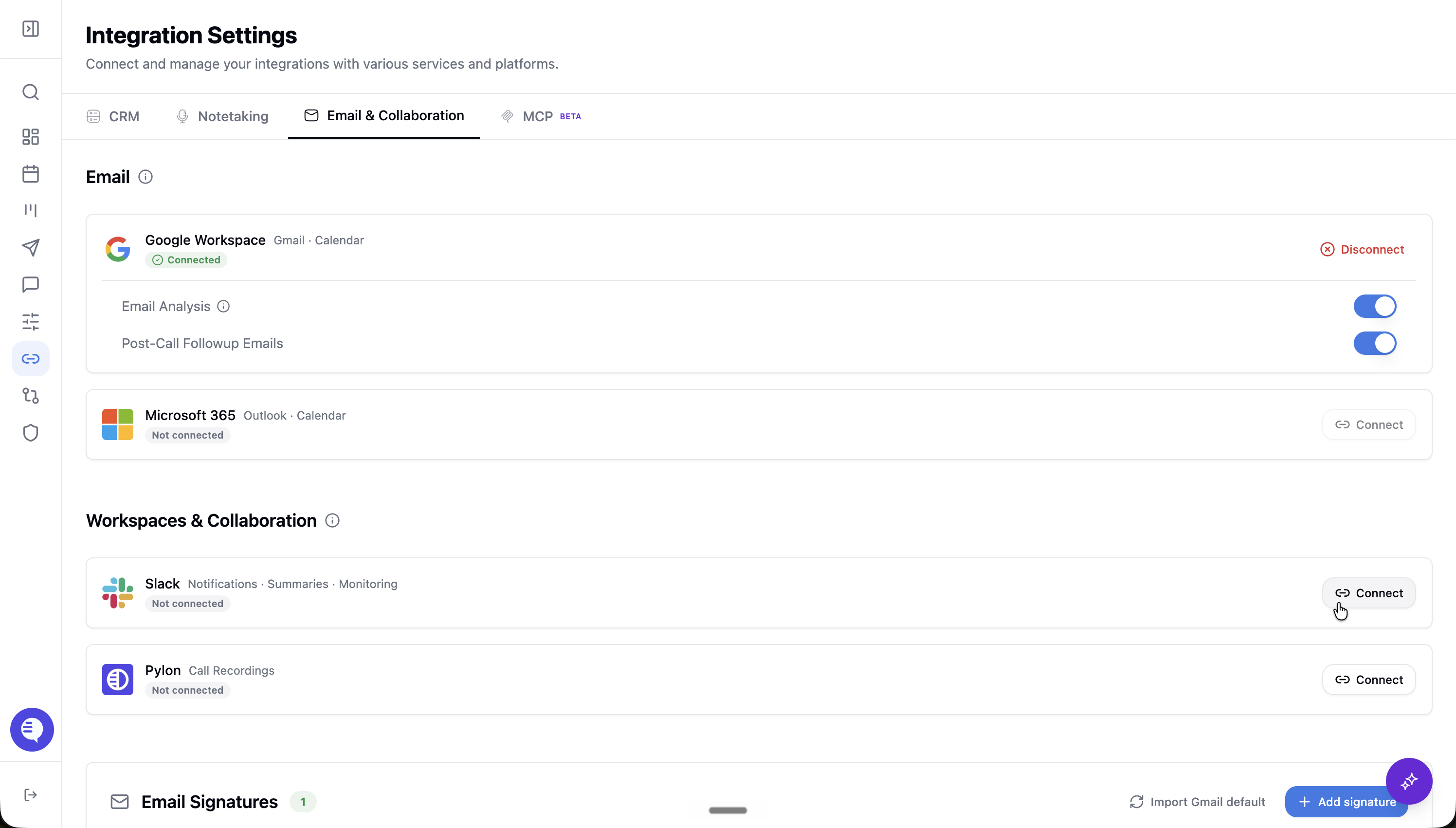
Use this page to connect Slack and manage the core Slack workspace connection.
Who can use this
Admins connecting the Slack workspace.
Users and operators validating Slack delivery, monitoring, or pre-call context settings.
Before you start
Use a Slack workspace where your team has approved Ergo access.
Add the Ergo app or bot to each channel the workflow should use; workspace installation alone does not grant channel coverage.
Confirm the channels and user-token behavior your workflow needs.
Keep Slack monitoring and pre-call context settings separate from the base Slack connection.
Steps
Open Integrations and select Slack.
Complete the Slack install or OAuth flow.
Confirm the workspace appears connected.
Review Slack monitoring and pre-call context only if those workflows are enabled for your team.
What to expect
The Slack connection can support notifications, summaries, handoff workflows, and Slack-related context where configured.
Monitoring and pre-call context require additional settings and channel access.
Slack context applies to channels Ergo can access after the app or bot is added; do not expect retroactive coverage of prior channel history.
Slack channel permissions, bot membership, and user-token setup can affect what Ergo can read or deliver.
Common issues
The app is installed in the workspace but not added to the target channel.
The user-token flow required for a workflow was not completed.
The workspace or channel policy blocks bot access.
AI-generated content disclaimer
Ergo uses AI, including large language models, to summarise, organise, and surface customer context in Slack. AI-generated responses, summaries, and pre-call context may occasionally be inaccurate, incomplete, or outdated.